
Enable Zoom on your console
Start at your PS5 home screen. The console’s Zoom setting sits under Accessibility.
- Open Settings.
- Select Accessibility.
- Select Display and Sound.
- Select Zoom.
- Turn on Enable Zoom.
Find the shortcut buttons
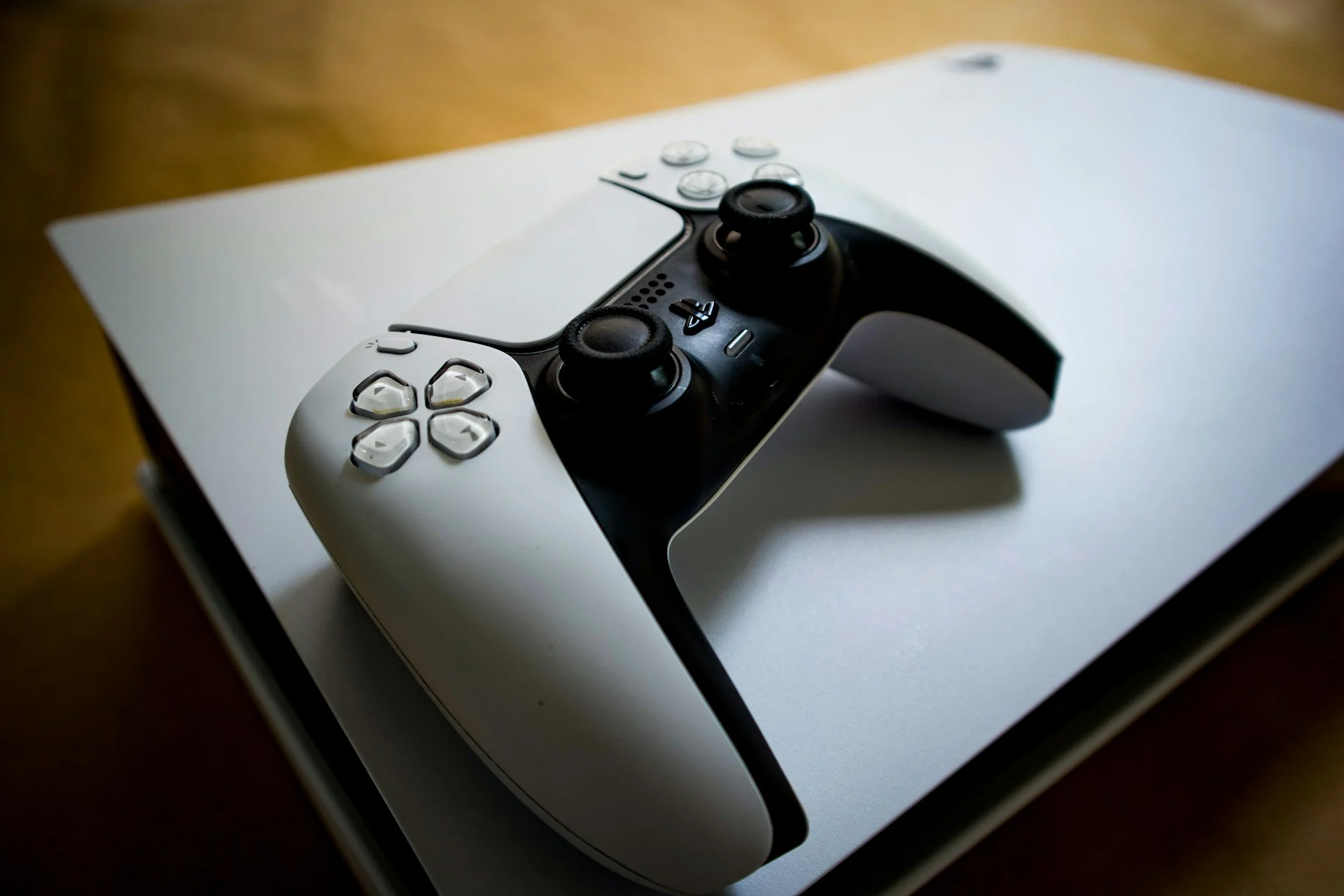
On a DualSense controller, the PS button has the PlayStation logo between the sticks. The square button sits on the left of the 4 face buttons.
The cross button selects an item in console menus, while circle cancels a command. You’ll use both when adjusting and ending zoom.

Enlarge the screen and choose an area
- Open the screen you want to enlarge.
- Press PS + square together.
- Repeat PS + square until the magnification suits you.
- Move the right stick to choose the display area if Adjust Display Area to Movement is off.
- Press cross (×) to confirm.
You can now continue using the console while zoomed in. If you enable Adjust Display Area to Movement, the view follows movement. However, it stays fixed during certain activities, including games and disc-based media.
Return to the normal view
- Press PS + square together while zoomed in.
- Press circle to end zoom.
Check activities that block zoom
PS5 Zoom is unavailable during Remote Play, broadcasting, Share Screen, Share Play, and PlayStation VR use. On PS5 Pro, 8K output also blocks zoom.
Fix picture edges separately
If the picture looks cut off or has a black border, use Adjust Display Area. Start from the home screen.
- Open Settings.
- Select Screen and Video.
- Select Screen.
- Select Adjust Display Area.
- Follow the on-screen instructions.
For spoken help with console text, our PS5 Screen Reader guide covers the voice controls and reading shortcuts.
Featured photo: User_Pascal on Unsplash.


Leave a Reply