
This article may include affiliate links that earn us a small commission at no extra cost to you, and some content was created with the help of AI tools but reviewed and approved by a human before publishing.

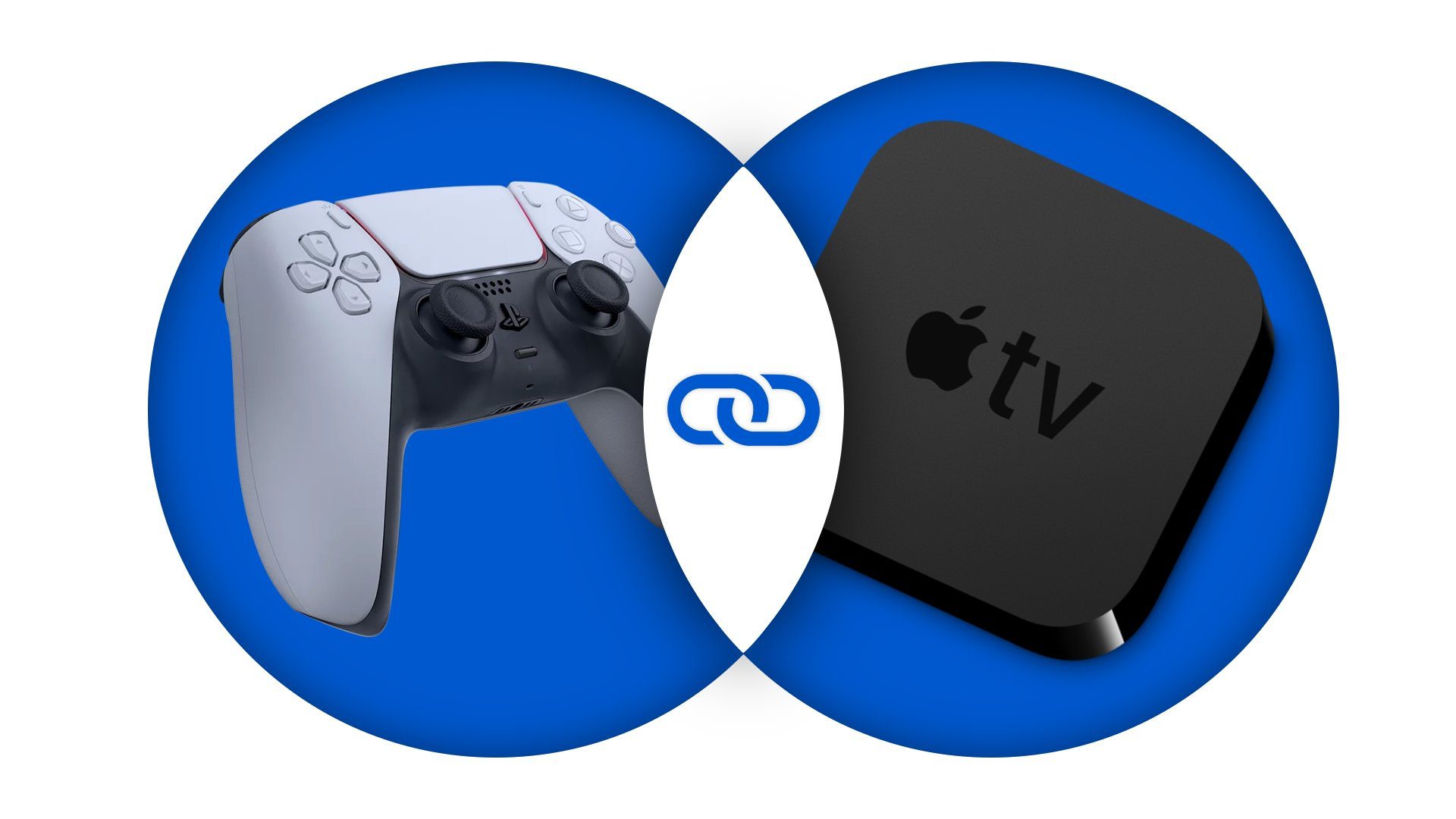
This article will explain how to connect a DualSense to your Apple TV. To connect the DuelSense to Apple TV, you must be running tvOS 14.5 or newer. Go to Settings > General > About to see what version you’re running.
- Make sure your DuelSense controller is off, to do this; we recommend shutting down or resting your PS5; this will automatically turn off the controller.
- To put the controller into pairing mode press and hold the PS and Share Button until the light player indicator starts blinking.
- Open Bluetooth Settings by going to “Remote and Devices” on your Apple TV Settings App scroll down to “Bluetooth” and select it.
- Scroll down and click on the controller from the list, once the controller player indicator stops blinking, you’re connected!
To save battery power on the controller, return to Bluetooth settings and select the controller from the list and Select “Disconnect Device”


